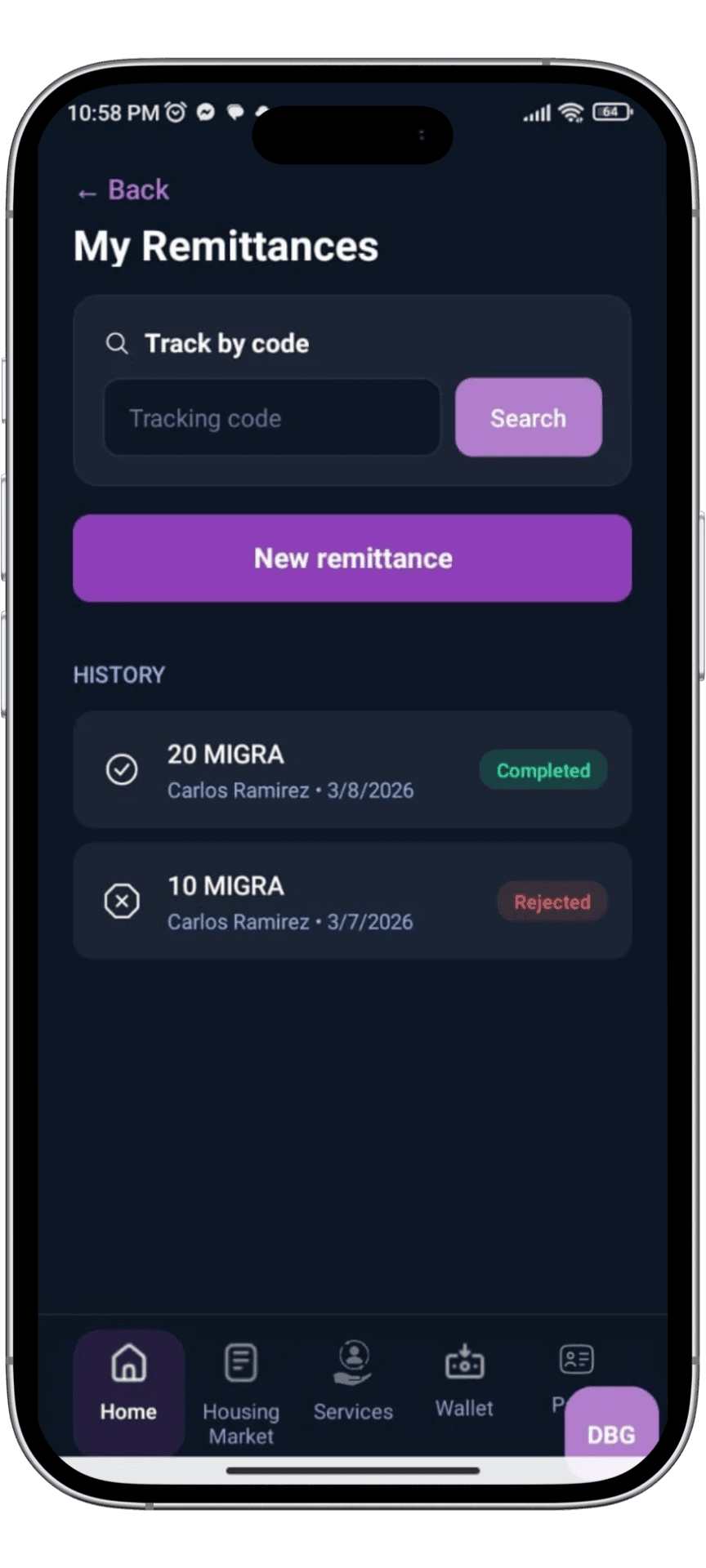
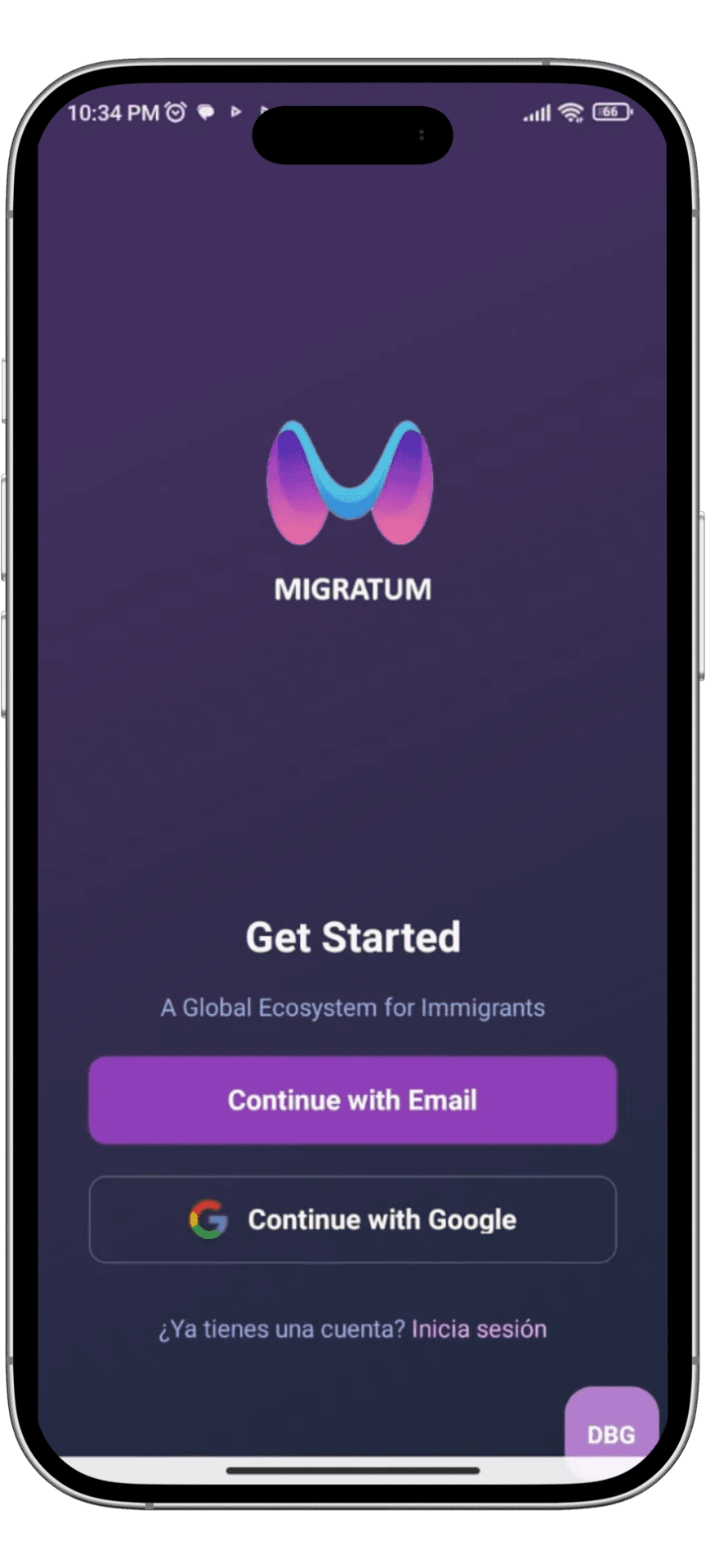
1. Let’s Get Started!
This is the welcome screen. Simply choose how you want to sign in—either by using your email or your Google account. It’s the first step to access your secure account.
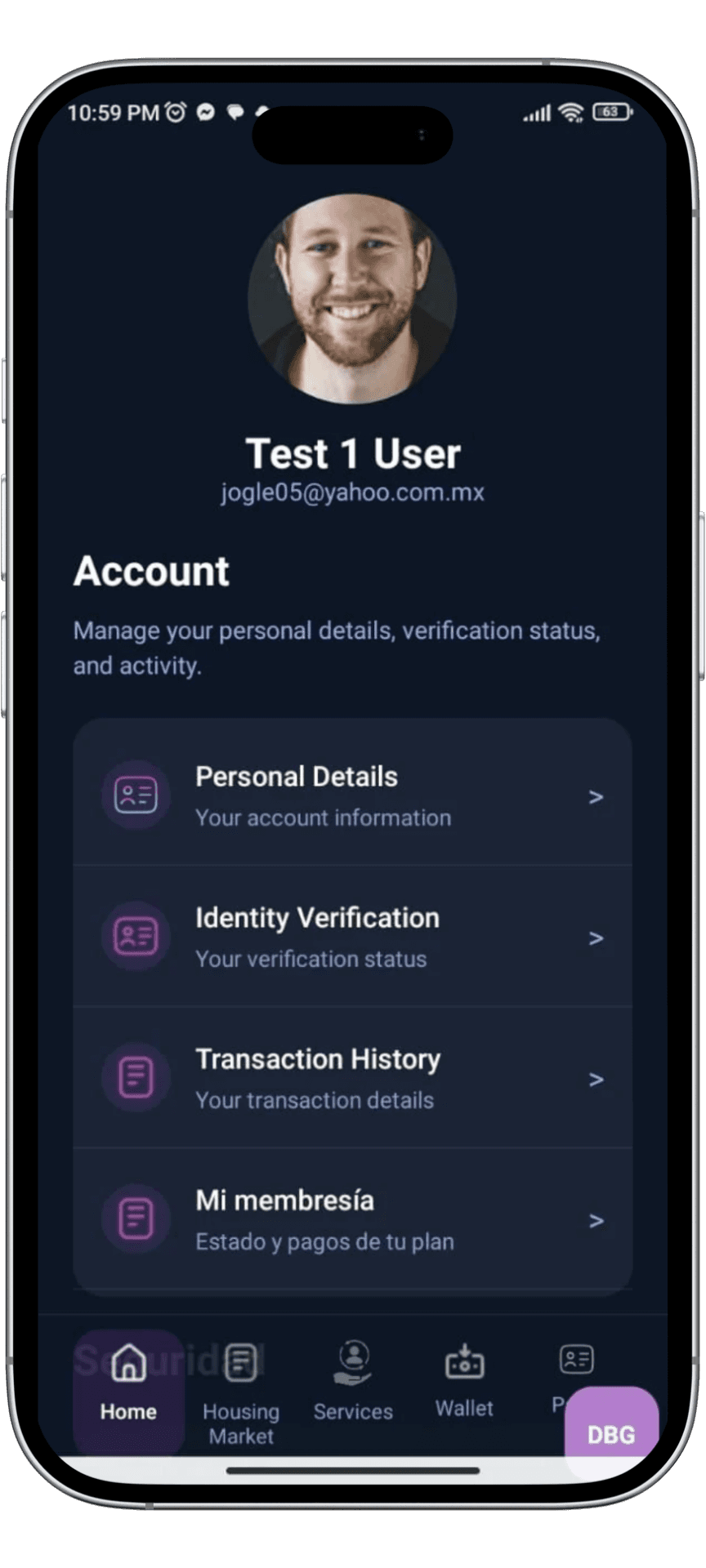
2. Your Account Menu
Once you're in, you’ll see your profile summary. From here, you can manage your personal details, verify your identity, or check your recent activity. Think of it as your "command center."
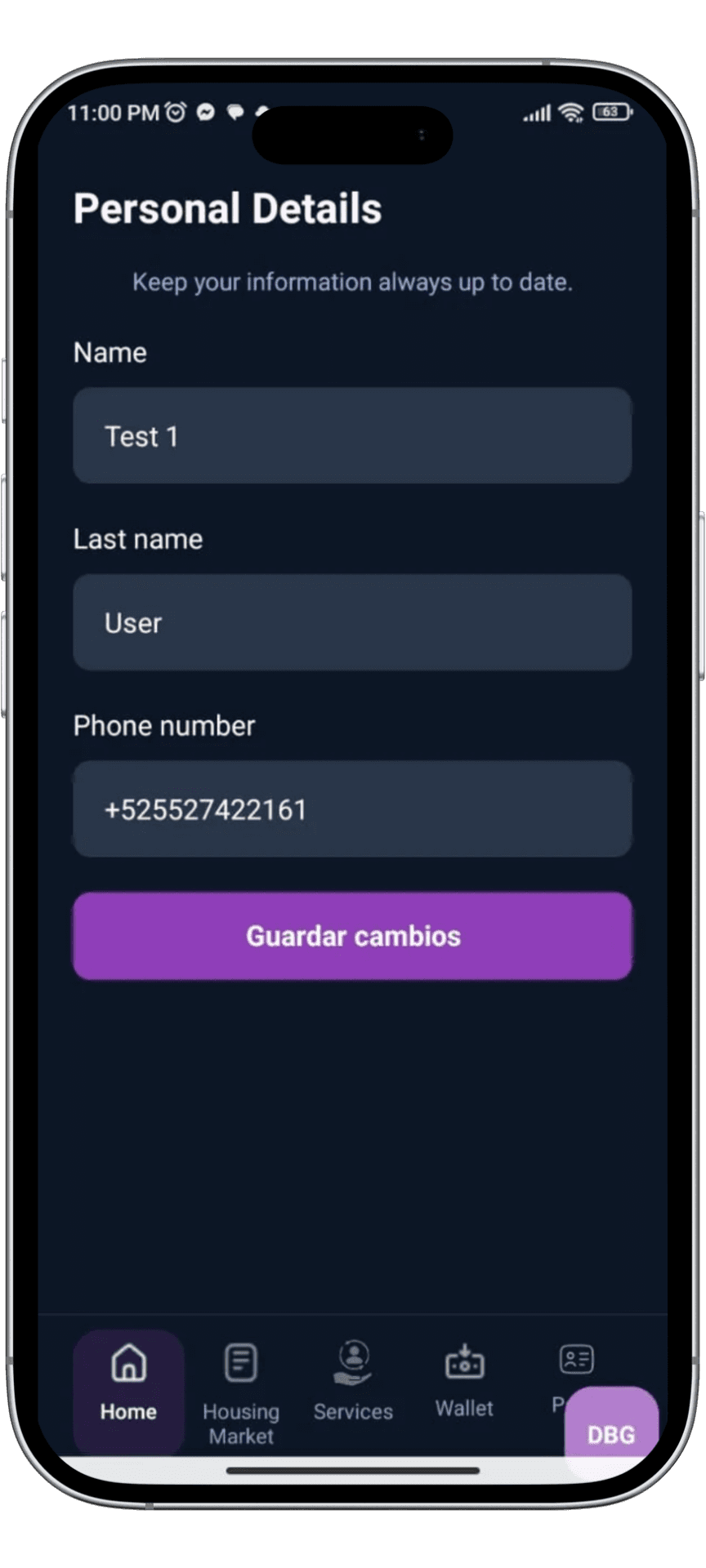
3. Personal Details
This is where you enter your basic info: your first name, last name, and phone number. It’s important to keep this updated so your transfers go through without any issues.
4. Add Funds
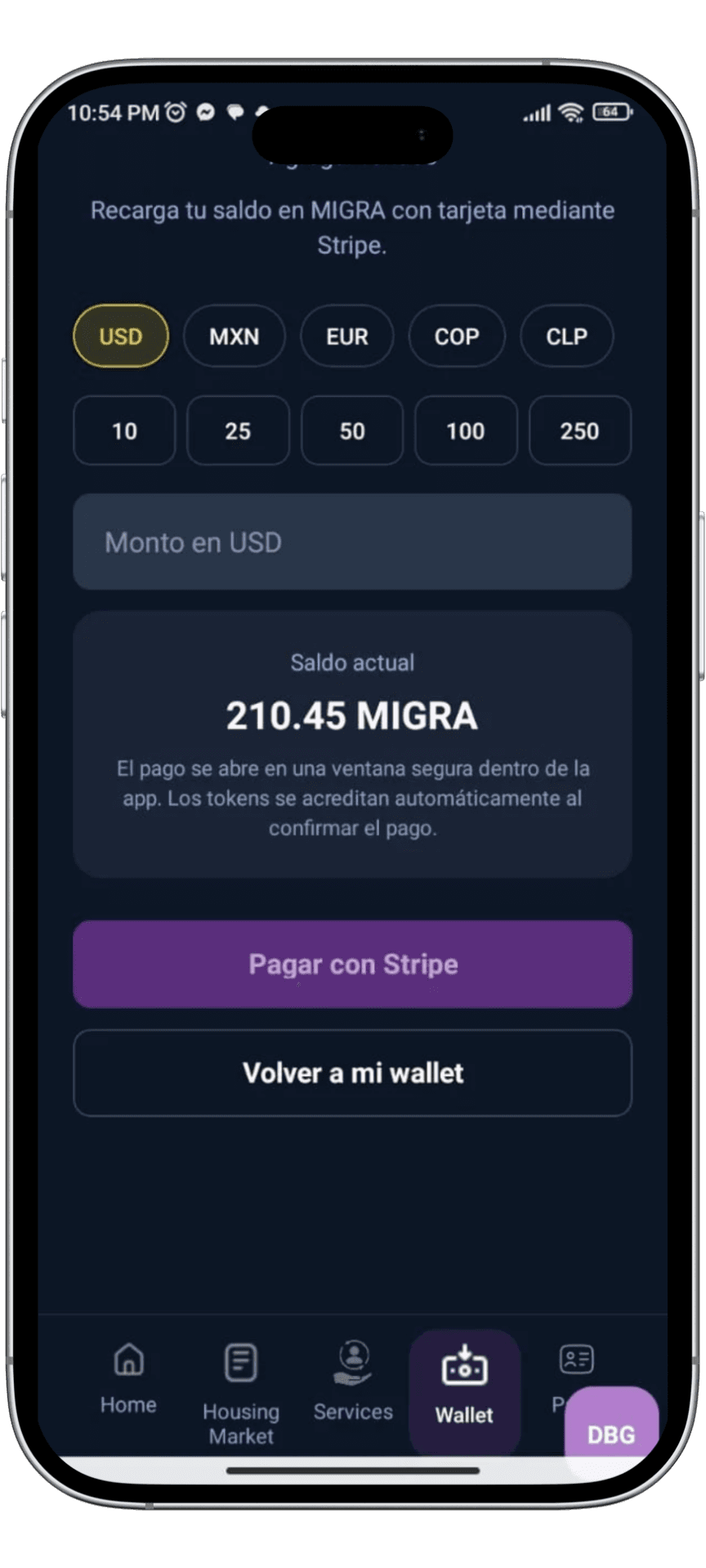
On this screen, you choose how much money you want to add to your app "wallet." Pick your currency (like USD) and select one of the amount buttons or type in the exact total.
5. Check the Exchange
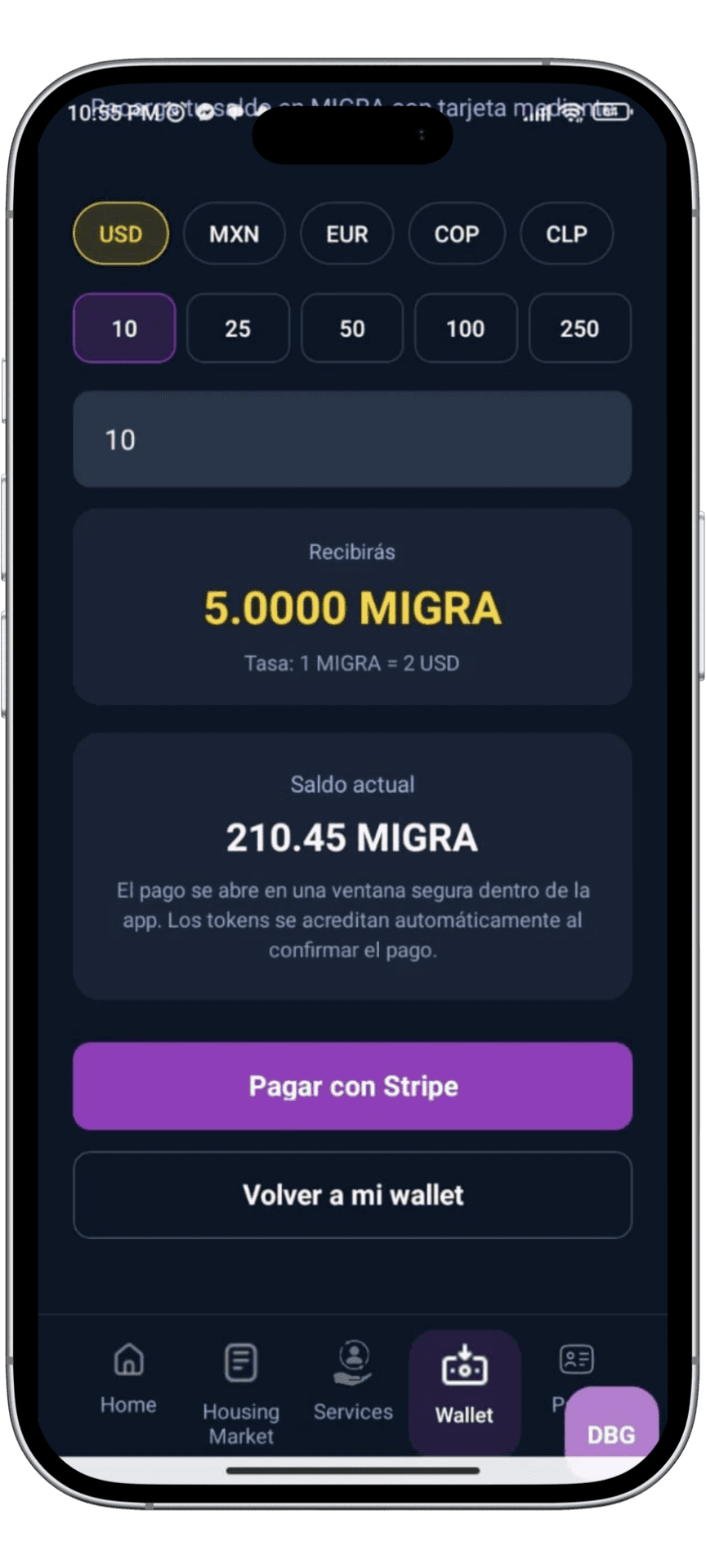
Before paying, the app shows you exactly how many "MIGRA" tokens you’ll get for your money. It’s just like a currency exchange: it shows you today's rate and the final amount you’ll receive.
6. Secure Checkout
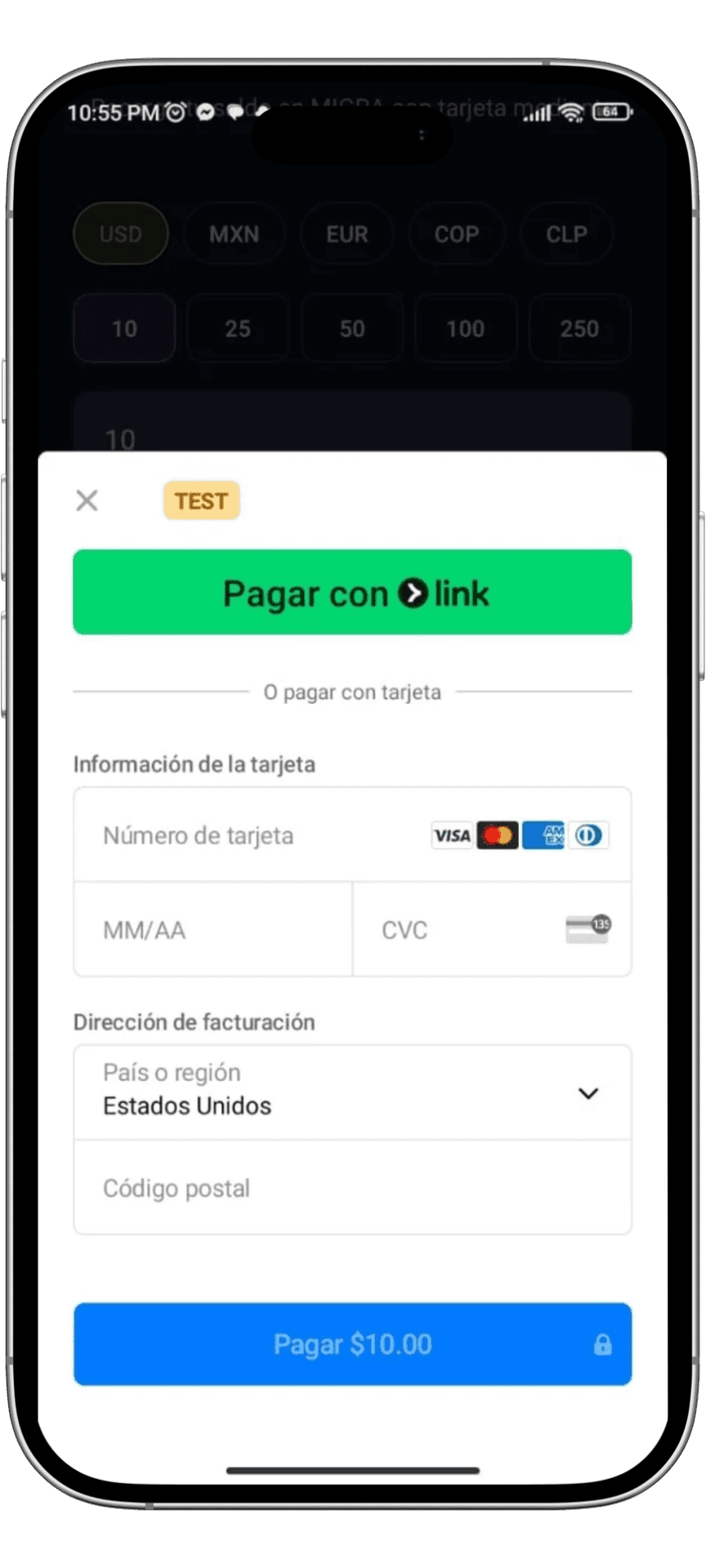
This is where you enter your card details (the long number, expiration date, and the code on the back). This is a secure window used to pay the amount you chose in the previous step.
7. Choose a Recipient
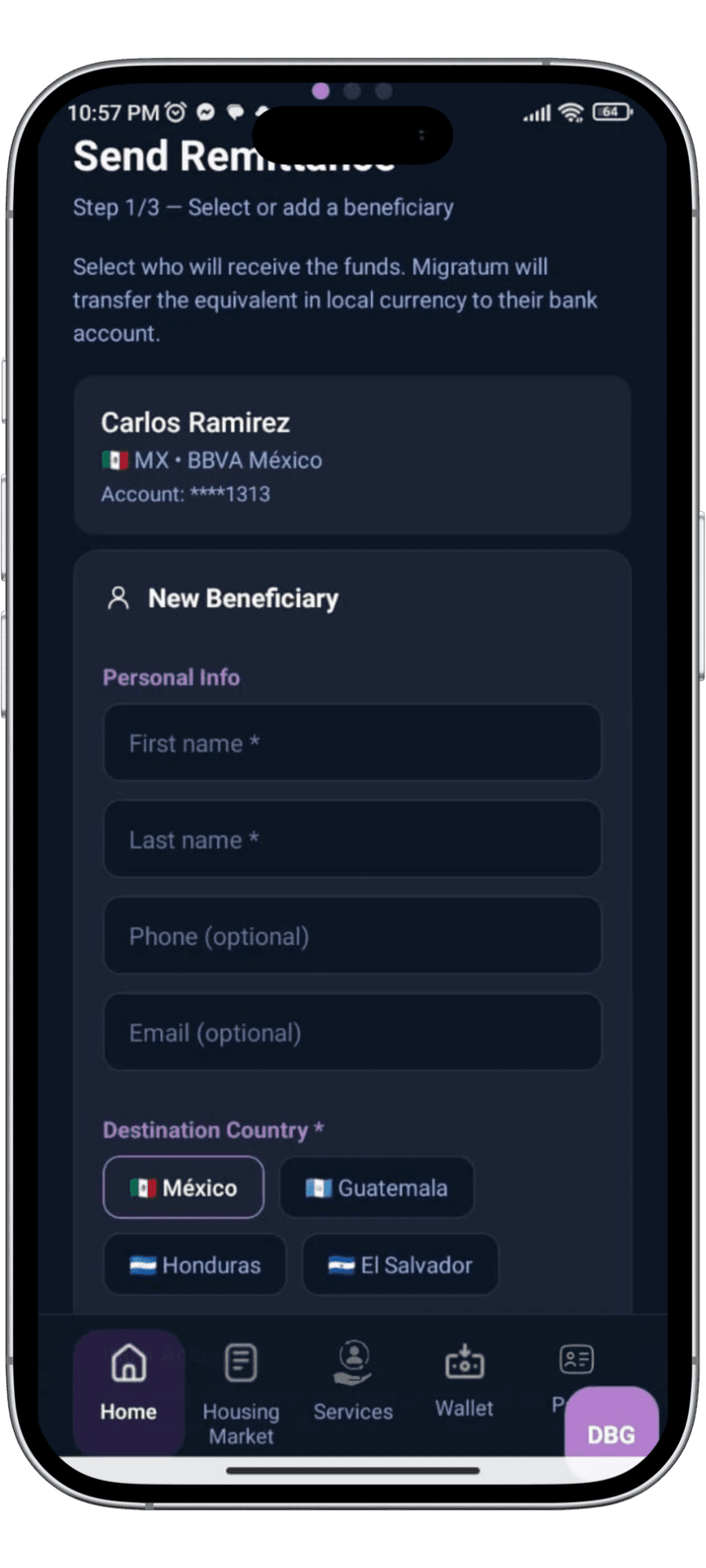
Now that you have balance in the app, pick who you want to send money to. You can select a saved contact or enter a new person’s name and their country (like Mexico or Guatemala).
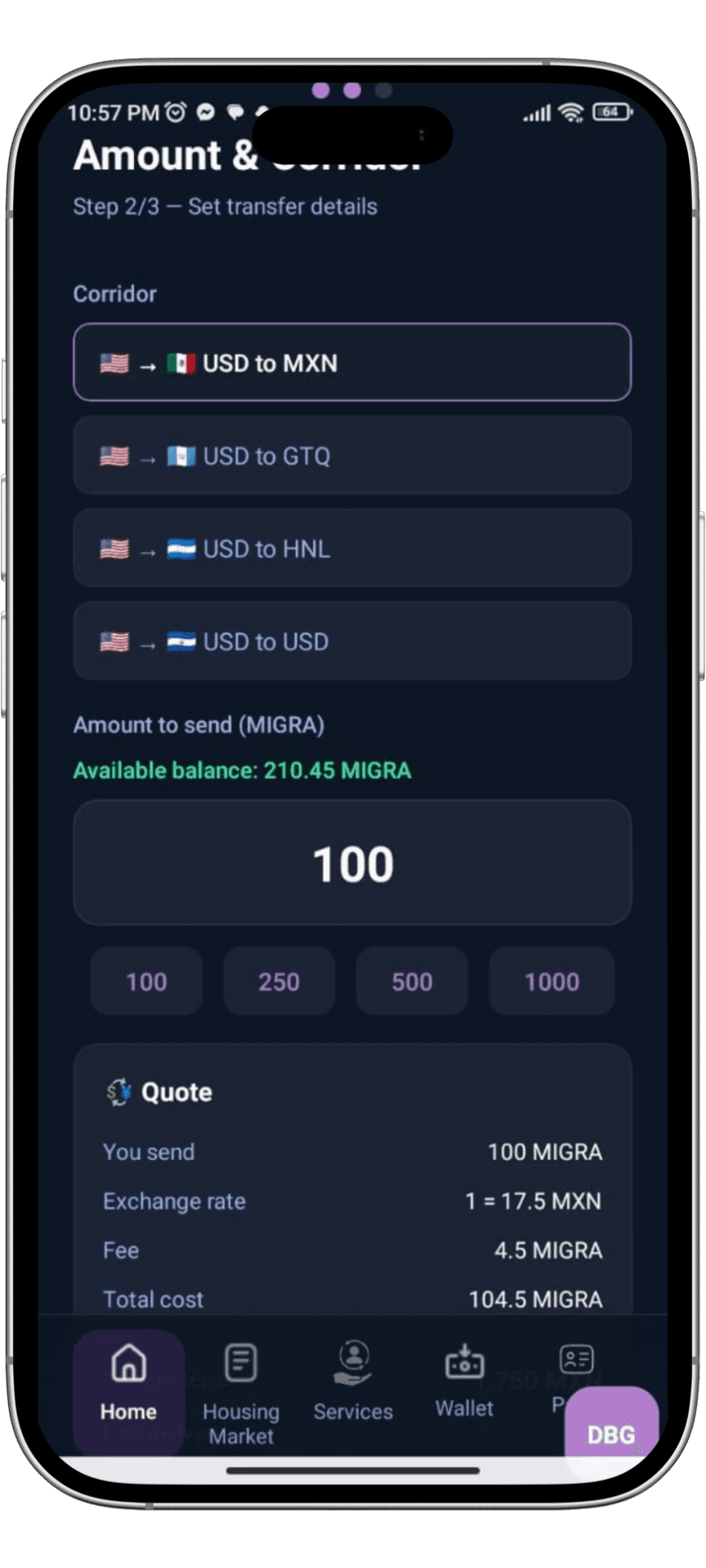
8. Set Up Your Transfer
Here you choose the "corridor" (for example, from USD to MXN) and the amount you want to send. The app will give you a quick breakdown of the exchange rate and the service fee.
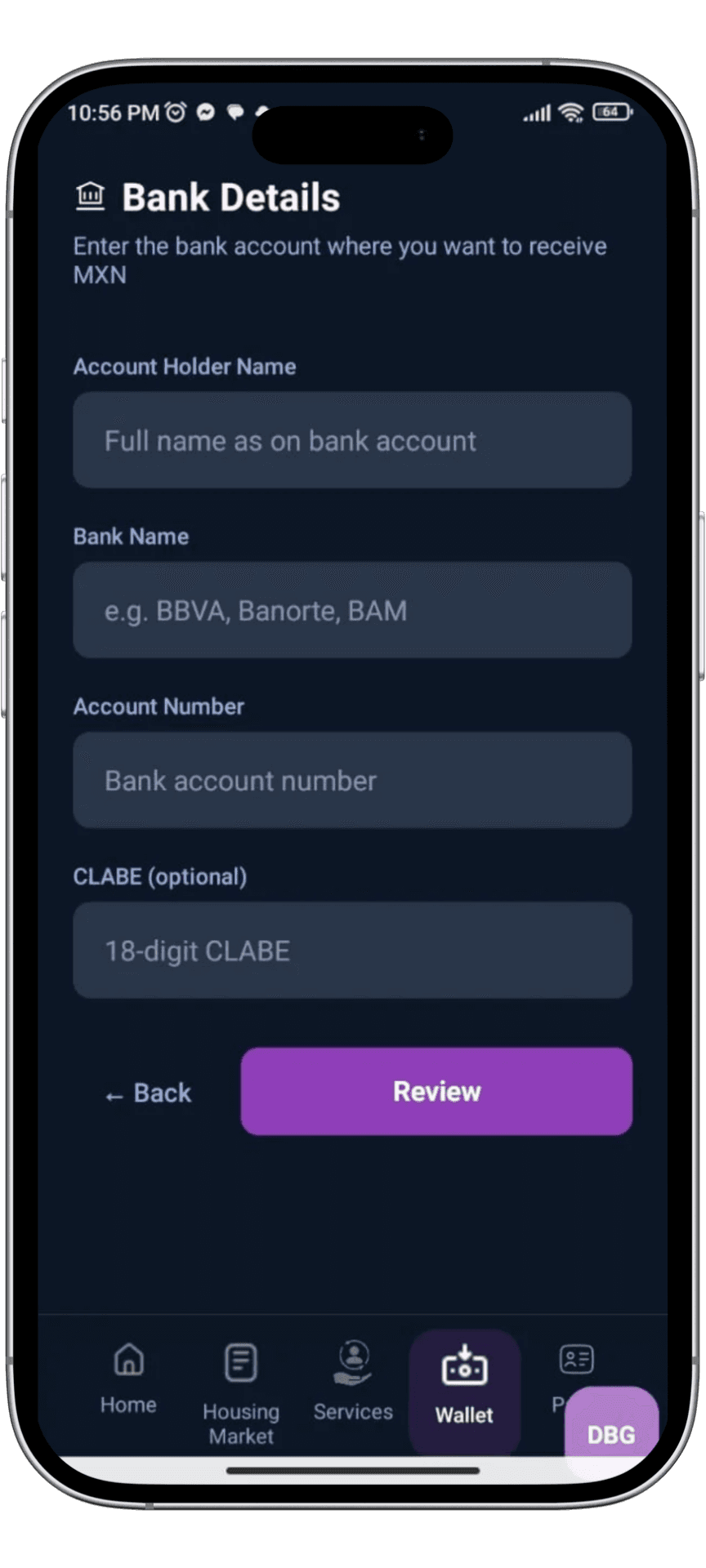
9. Bank Details
To make sure the money arrives safely, enter the receiver's bank information: their full name, the name of their bank, and their account number or CLABE. Double-check those numbers!
10. Track Your Remittances